)
)
One of the unsung challenges of running a client service business? Planning for those in-flight “maybe” projects that can often take just as much effort as confirmed ones. And when you don’t have the right tools at your disposal to assist in that planning, it’s easy to waste time, duplicate work, or lose visibility altogether while waiting for the pieces to come together.
That’s why we’ve doubled down on Tentative Projects in Teamwork.com! Now with standout enhancements, brand new functionality, and connectivity throughout multiple areas of the platform (including quotes, day-to-day projects, reporting, Hubspot, and resource management), Tentative Projects are here to make space for projects that might become real any day now—without disrupting your live delivery teams.
Tentative Projects transformation: Catch these 4 major updates
Tentative Projects aren’t a new concept to Teamwork.com. As we continued to understand their importance and how you all work with them, we continued to evolve our offering and fit into more workflows. Tentative projects are an essential part of client work as they:
Bridge the gap between your CRM pipeline and delivery
Allow you to run “what if” scenarios without disrupting delivery teams
Help you reserve capacity, map resourcing, and forecast revenue long before deals close
Ensure projects are setup realistically and will be successful
Now let’s dive into the latest and greatest of all things Tentative Projects in Teamwork.com.
Transcript for the video 'Pipeline to Project':
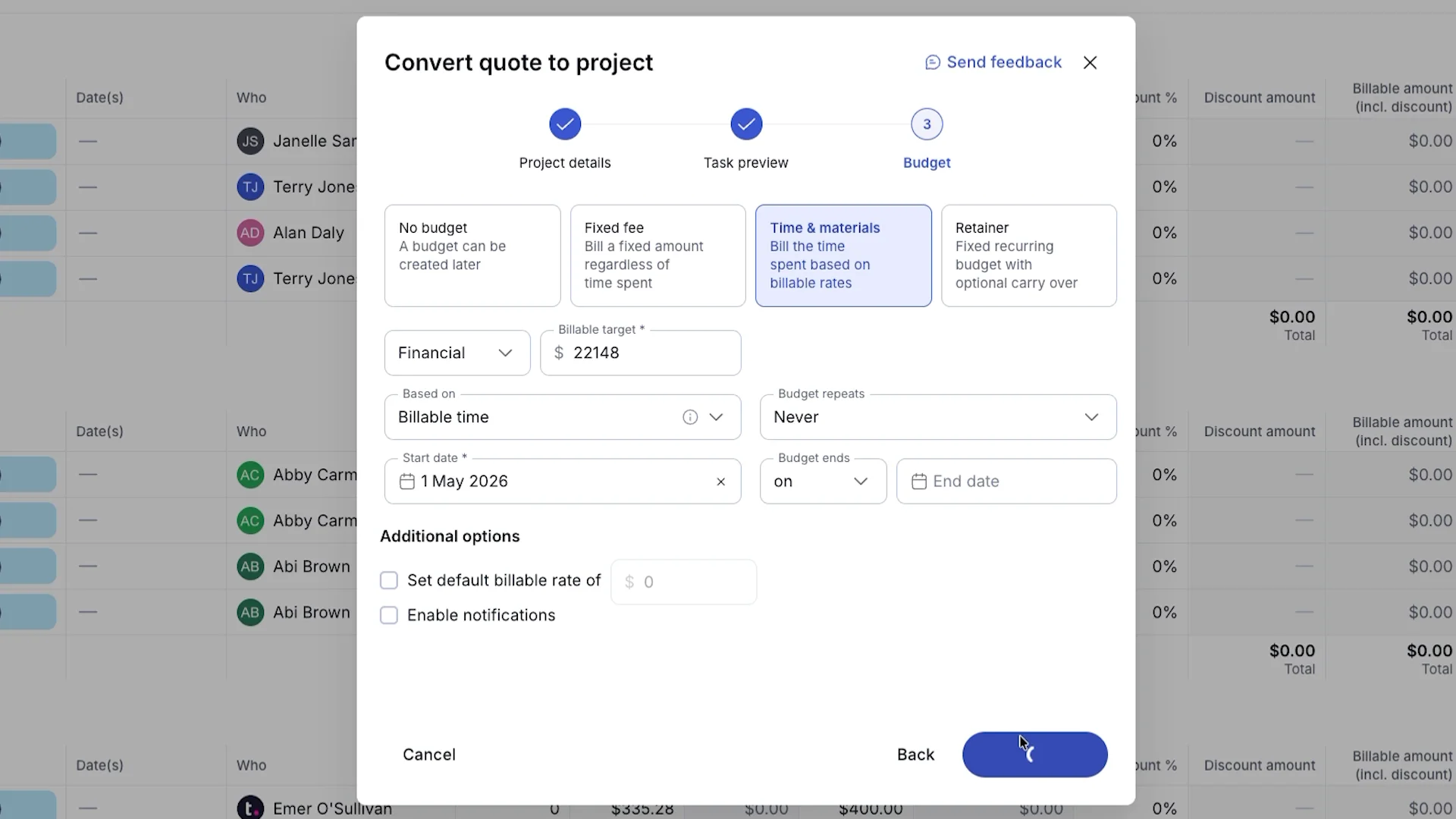
Project shouldn't be a scramble the second the deal closes. With Teamwork dot com, you can build quotes with capacity, timelines, costs, and profit margins already baked in. So before work is won, you know whether your team can actually deliver it profitably. When the deal is ready, convert the quote into a project in just a few clicks. Your line items automatically become tasks, allocations, or expenses with the right resources and rates carried across. No copy paste. No rework. No starting from scratch. From there, keep the project tentative while you fine tune the plan. Check capacity, reserve resources, model scenarios, and forecast revenue before the work hits your live delivery team. When everything is ready, set the project to confirmed. And with the HubSpot integration, tentative projects can be created and updated automatically as deals move through your pipeline. Teamwork dot com connects sales, operations, and delivery, turning one deals into ready to run work.
1. New “Type” label for projects: Tentative or Confirmed
Tentative Projects bring a faster, smarter, and more connected way to plan upcoming work, right from the get-go with when you start creating a project. Let’s dig into how it works.
When starting a new project from scratch, you can now label it as “Tentative” or “Confirmed.” Enter just the essentials (project name, client, and start or delivery date) and refine the details as needed when certainty around the project grows. This lightweight setup helps you get moving quickly, without getting bogged down or overinvesting time in early planning.
)
This new “Type” label can be seen as a column in the project list view as well as filters across the application and in reports. How’s this to help better understand your pipeline and the mix in your book of business?
💡 Bonus: Have an existing template you love? Apply a tried and true template to your Tentative Project to get up and running even faster.
2. Be connected from CRM to confirmation
Want to take your Tentative Projects to an even more strategic level? You’ll be glad to know they integrate directly with Tentative Projects in HubSpot to make all of your CRM-connected dreams a reality.
You can create and manage Tentative Projects from HubSpot, automatically updating your project status based on deal stage. This keeps your CRM as your single source of truth for pipeline management, while syncing project details directly into Teamwork.com.
Prefer a more hands-on approach? You can also create Tentative Projects manually for greater control and review before they’re confirmed.
3. Soft allocations, right within the Tentative Project
It’s time to bring resource management into the mix. A new “Schedule” tab offers you the perfect playground to plan allocations and resources right within your Tentative Project. That’s correct, no hopping in and out of the Resource Scheduler! Everything is within the project now, providing all the context you need as you scenario plan.
There will be two tabs within the Schedule section of your Tentative Project:
People - This shows all people you’ve added to the Tentative Project—all the possible resources you can pull from and begin allocating work against. The great thing about this view is you can choose to show allocations from other projects, so you really understand their true availability!
Schedule - This shows those team members with allocations, people you manually add, or placeholders you manually add—a more focused view of those that’ll actually execute the work. Use smart assign to find the best resource match for placeholders or reassign an allocation from one named resource to another.
)
💡 Bonus: Spot the predicted budget usage in the Schedule tab to understand how your resources and their time would eat away at the project budget.
)
4. Make a template out of your Tentative Project
Another win for Tentative Projects and Templates? You bet! Tentative Projects can now be made into a project template.
With this in tow, newly spun up projects will have a Schedule tab that is pre-populated with resources and allocations already! Perfect for the most common jobs your team is delivering. Now your templates aren’t just capturing the work itself, but the time, resources, and skills required for delivery.
)
Wave goodbye to resourcing guesswork, manual setup, and re-creating allocations. Say hello to a resource plan that will have legs and serve you long term, realistically and efficiently.
From tentative to confirmed, in just one click
As payback for all your upfront planning, meticulous calculations, and thoughtful decisions, converting your project from Tentative to Confirmed is a one-click-wonder. Just click “Set to confirmed” and bada-boom, bada-bing—all of your details, budgets, allocations, tasks, resources, and more come with it.
Once converted, anyone added to the project or assigned tasks gets notified as normal and everything becomes visible and actionable.
Tentative Projects to the rescue
As you can see, Tentative Projects help connect sales, planning, and delivery while giving you early visibility into what’s coming down the pipeline. You can understand margins and spot risks sooner, forecast with more confidence, and plan ahead without the stress.
Want to use Tentative Projects to help you make smarter decisions long before work officially begins? Reach out to sales@teamwork.com and we’ll be in touch!
)
)
)
)
)
)
)