)
)
Teamwork.com April 2026 updates — Summary + key takeaways:
April’s roundup is all about giving you more control and clarity across your work—from the new Insights Panel that brings customizable, widget-based reporting into a single view, to deeper AI integrations with Claude Cowork for real-time project insights. We’ve also introduced more flexible quote settings, expanded automation capabilities across the platform, and given you more visibility over Scheduled Reports.
See what matters, the way you want to see it
We’re excited to introduce the Insights Panel—a new, customizable layer on top of your Project Health Report designed to make your data more accessible, actionable, and easy to digest.
)
Nestled right within the Project Health Report, the Insights Panel brings your most important project data into a single, flexible view, with eye-catching widgets that help you quickly understand what’s happening across your projects, before you even start digging deeper into your reports.
With the Insights Panel, you’re in control of how your data is displayed. You can reorder widgets, resize them, update titles, and tailor colors to suit your preferences and workflows. You can also choose how your data is visualized, whether that’s bar charts, pie charts, or other formats that make the most sense for you.
Once enabled, the Insights Panel gives you instant access to key data points in one place. You can:
Customize your report with visualizations that highlight the most important data points
Surface new insights not previously available in the Project Health Report, including risks, milestones, and financial and estimation data
Dive deeper into your data by interacting with widgets via additional popovers for more detail
Fine-tune your view by adjusting visualization methods or applying conditional formatting
)
Project health – Get a clear breakdown of health across your portfolio
Budget usage – Track how budgets are being used across projects
Late projects – See how many projects are late, with helpful comparisons against on-track work
Project updates – Stay informed with a live feed of the latest updates
Notes – Add your own private notes, links, or images—it’s your flexible space for anything you need
Admins get full visibility across all widgets and data, while Project Admins have access to data for any projects they manage.
Coming soon: Create your own widgets, apply custom filters, and unlock even more ways to tailor the Insights Panel to your needs. Stay tuned!
Available on Deliver (up to 5 widgets), Grow (up to 10 widgets) and Scale plans (up to 20 widgets)
Take action on your project data by connecting Claude Cowork with Teamwork.com
By now, you've hopefully checked out Teamwork.com's MCP server, which helps you connect your work to LLMs including ChatGPT, Gemini, or Copilot.
This month, we're shining a spotlight on our connection with Claude Cowork. Unlike integrations that rely on periodic exports or manual data entry, our MCP connection means Claude always sees current information, with the ability to access your project data in real time.
Transcript for the video 'Connect Claude to the Teamwork.com MCP Server':
In this video, I'll show you how to set up the teamwork dot com MCP server so Claude can work across teamwork dot com and teamwork desk. First, go to your teamwork dot com account and then from the settings section, turn on the teamwork MCP server. We'll do the rest of the setup in Claude. In this case, I'm using the Claude desktop app. Firstly, go to settings, then select connectors and from here choose custom connector. Next, create a new connector. You can give it any name you like, but the important part here is the MCP server URL. Mcp dot ai. Teamwork dot com. Enter that server URL and then save the connector. Once that's done, the teamwork com MCP server has been added to Claude. Next, head back into Claude and test it with a prompt related to one of your Teamwork projects. For example, you can ask, can you give me a current overview including open tasks for Murphy Investment Co? At this point, Claude will ask you to connect to teamwork dot com. All you gotta do is select connect or reconnect and then log in to your teamwork dot com account. On the next screen, just select allow. And once you're done there, the teamwork dot com MCP server is fully connected. Now Claude will return a current overview of the Murphy investment co project in this case, including whether it's active, which task lists are open, and how many tasks are currently open, and so on. From there, you can continue with follow-up questions or ask Claude to take action on your behalf. Behalf. And that's it. Claude is now connected and ready to work with your Teamwork dot com account.
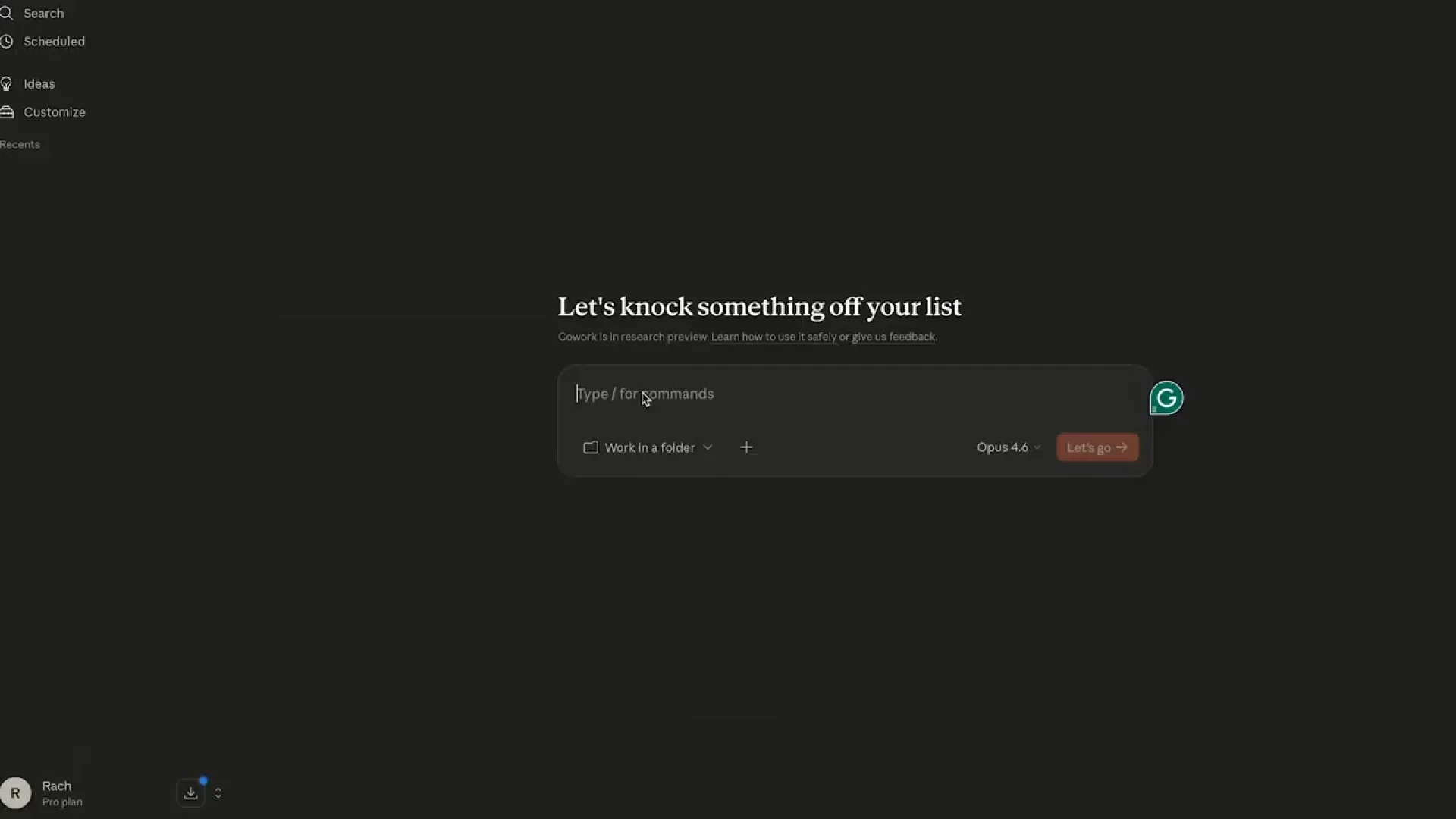
Note that Claude Cowork is available on Claude Pro, Team, and Enterprise plans through the desktop app (macOS and Windows). The free Claude plan does not include Cowork access. You'll also need a Teamwork.com account with API access to configure the MCP server connection.
A new Quote settings menu gives you even more customization
With four new optional customizations added to the Quote settings menu, it’s easier than ever to create polished, consistent quotes. Let’s take a closer look at each new customization:
Automate quote naming and numbering
So long, manual entry. You can now let Teamwork.com automatically generate quote names and numbers for you. Set up custom formats using prefixes, counters, and even date elements like the year, so your quotes follow your exact naming conventions. You can also add free text to the naming pattern field to match any company requirements. Whether you keep things simple or have a more complex structure, everything is handled automatically and always stays in sequence.
Set default billing rates
Speed up and standardize quote creation by setting a default billable rate to use across all quotes on your site. You can choose whether Teamwork.com pulls in user rates, role-based rates, or client-specific rates whenever you create a quote. It’s a flexible global setting that ensures your quotes start in the right place while still allowing you to override rates when needed.
)
)
Include detailed statements of work
Need more context than a standard quote provides? You can now include a full statement of work as part of your quote PDF. Add rich text content–whether it’s a short overview or a multi-page breakdown of the work involved—directly before the quote details. It’s a simple way to give clients the full picture without the hassle of separate documents.
Add signatures to your PDFs
Make it easier to finalize agreements by adding signature lines directly to your quote PDFs. When enabled, both your team and your client will have clearly defined spaces to sign, helping you move from quote to approval without extra back-and-forth.
Available on Scale plans
More flexibility for smarter workflows with new automation targeting
We’ve made automations more powerful and flexible with the ability to choose exactly where your actions run.
Previously, task-based automation actions could only be applied to the trigger task. Now, you can target the parent task, subtasks, or even tasks created earlier in the same automation, giving you far more control over how your workflows run.
)
When adding a task-based action, you’ll now see a target picker with four options to choose from:
Trigger task – The task that started the automation
Parent task – Apply changes to the parent of the trigger task
Subtasks – Run actions across all subtasks
Previous task – Target a task created earlier in the same automation
This opens up a range of new possibilities, letting you:
Keep tasks aligned by updating all subtasks when a parent task changes
Surface blockers by escalating issues from subtasks to parent tasks
Chain actions together by creating a task and then updating it in the same workflow
Available on Grow plans and above
Automations are also at the core of the latest Desk update, allowing you to create Desk tickets or send customer messages directly from your automations.
)
That means when work happens in Teamwork.com, the right follow-ups take place in Desk instantly. Whether it’s handing off a project to support after launch, flagging out-of-scope work for billing, or triggering client feedback at key milestones, you can keep everything moving without the manual back-and-forth.
Set the inbox, assign the right owner, customize the message, and even pull in task data using variables so every ticket or message is ready to go from the moment it’s created.
Available on all Desk plans
Take the guesswork out of Scheduled Reports
We’ve made Scheduled Reports easier to manage with two new tabs that give you greater visibility into what’s being sent and what gets delivered.
Preview and configure with the Report Details tab
The new Report Details tab lets you see exactly what your Scheduled Report will include before it goes out.
)
You can reorder columns, apply filters (including keyword filters), and adjust the data range. It’s perfect regardless of whether you’re sending a one-off report or setting up a recurring schedule. We’ve also added real-time PDF validation, so if your report happens to exceed the column limit, you’ll see a clear message explaining why the PDF isn’t available.
Track every send with the Log tab
Additionally, the new Log tab gives you a complete audit trail of your Scheduled Reports.
)
You can view up to 60 recent sends with timestamps and delivery status, including Planned, Sent, Partially Sent, or Failed. Also, you can quickly see when something didn’t go as expected, with details on which recipients might’ve failed. Plus, recipients can download previously sent reports directly from the log.
Available on Scale plans
)
)
)
)
)
)
)