)
)
Claude and Teamwork.com: Summary & key takeaways
What it is: Claude is Anthropic's AI desktop agent that connects to Teamwork.com through an MCP server to read, analyze, and act on your project data.
Why it matters: It turns your AI assistant from a generic chatbot into a coworker that understands your live projects, tasks, and timelines.
Setup: Connecting the two takes under 15 minutes with the Claude desktop app and Teamwork.com's MCP server.
Best for: C-suite and ops leaders who want AI to handle status reports, project briefs, risk analysis, and admin without switching tools.
Key limitation: Claude runs locally on one computer and doesn't yet support team-wide collaboration.
Claude isn't another chatbot you paste tasks into. It's a desktop AI agent that sits on your computer and connects directly to the tools you already use, including Teamwork.com.
The difference matters more than most teams realize. When your AI can pull live project data, flag overdue milestones, and draft client reports without you copy-pasting context, you stop treating AI as a side tool and start treating it as a coworker.
I've watched dozens of delivery teams try to bolt AI onto their workflows with mixed results. The ones that got value from it were the ones whose AI could actually see their project data.
In this guide, I'll show you what Claude is, how the entire Claude.ai platform (including Chat, Cowork, and Code) connects to Teamwork.com through the MCP server, what it can actually do with your project data, and how to set it up in under 15 minutes.
What is Claude (and what makes it different from ChatGPT)?
"We already have ChatGPT integrated. Why would we add another AI tool?" It's a fair question, and the answer comes down to how the AI accesses your data.
Claude is Anthropic's desktop AI agent, built for knowledge workers who aren't developers. Unlike a browser-based chatbot, it runs on your computer with direct access to your local files, folders, and connected tools. You give it a task ("draft a status report from this week's project updates"), and it works through the steps autonomously rather than waiting for you to paste in context.
The connection to Teamwork.com happens through the Model Context Protocol (MCP), an open standard that lets AI agents read and write data in external tools. Teamwork.com's MCP server exposes your projects, tasks, time entries, and milestones to Claude, so it can pull live data rather than relying on whatever you remember to copy into a chat window.
If you're already using the Teamwork.com ChatGPT connector, the key difference is this: the ChatGPT connector works inside a chat interface where you ask questions and get answers. Claude works on your desktop, reads your file system, and executes multi-step tasks without you managing every step. One is a conversation partner. The other is closer to a junior team member who can pull the data and draft the deliverable.
Why your project management stack needs an AI coworker, not just an AI chatbot
What I keep seeing across mid-size services teams is a pattern that's equal parts frustrating and fixable: the team has AI access, they've got a PM tool full of data, and yet the two don't talk to each other. The project manager still spends Monday morning copying task statuses into a spreadsheet, writing a summary by hand, and emailing it to leadership.
That's not an AI problem, it's a connection problem.
According to Teamwork.com's Sprint to AI research, 58% of professional services teams now use three to five separate tools to manage their work. Each tool holds a slice of the picture. Your PM platform knows task statuses and deadlines. Your time tracker knows where hours went. Your docs tool has the meeting notes. But your AI chatbot? It only knows what you tell it in the moment.
An AI coworker changes the equation. Instead of you being the bridge between your data and your AI, the AI connects to the data directly. It reads your Teamwork.com projects, checks what's overdue, pulls time entries, and drafts the report, all without you acting as the middleman.
For C-suite leaders, this shift matters because it directly reduces non-billable admin time. The teams I've been part of in prior roles typically lost many hours per week on reporting and status updates alone. When the AI can pull that data and generate a first draft, you reclaim those hours for billable work.
The real cost isn't just time. It's the decisions that don't get made because leadership doesn't have a current view of project health. If your status reports are always a week old, you're managing on stale data, and that's where margin erosion starts.
How to evaluate whether Claude fits your workflow
I've watched teams jump into AI agent setups before understanding whether their workflow actually needs one. Not every team benefits from connecting an AI agent to their PM tool; some workflows are simple enough that a chatbot does the job. Here's how to figure out whether Claude adds real value for your team.
Step 1: Map your repetitive knowledge work
Start by listing the admin tasks your team does every week that involve pulling data from Teamwork.com and turning it into something else: status reports, client briefs, resource summaries, risk assessments. If the task requires a human to gather data from one place and reformat it in another, that's a candidate for Claude.
The pattern to watch for is work that's structured enough to describe clearly ("pull all tasks due this week, group by project, flag anything overdue") but tedious enough that nobody wants to do it. That's the sweet spot.
Step 2: Check your integration requirements
Claude connects to external tools through MCP servers, in addition to supporting Teamwork Desk and Spaces. Teamwork.com offers an MCP server that exposes project data to AI agents. Before committing, verify that your specific workflow data is accessible.
What you need
If your workflow stays mostly within Teamwork.com and local files, Claude covers it. If it relies heavily on data from tools without MCP support, you'll hit gaps.
Step 3: Assess your team's AI readiness
If you answer yes to three or more of the questions below, Claude Co-work is likely worth the set up time. If it's fewer fewer than two, a simpler AI integration may be a better starting point.
Self-audit: is your team ready for an AI co-worker?
Your team already uses Teamwork.com to track tasks, time, and milestones (not just as a task list)
At least one person spends 3+ hours per week on reporting or status updates
Your leadership team wants faster access to project health data
You have a Claude Team or Enterprise plan (or are willing to get one)
Two ways AI connects to your project management tools
The AI-meets-PM space breaks into two categories, and understanding the difference saves you from buying the wrong thing.
Built-in AI is what lives natively inside your PM tool. Teamwork.com's AI features include the AI Project Wizard (turns briefs into fully built projects), AI Smart Scheduler (finds the right person for each task based on availability and skills), and AI Forecaster (predicts project risks before they hit). These are purpose-built for specific PM workflows and work out of the box.
MCP-based AI agents like Claude are external tools that connect to your PM platform through an API layer. They're more flexible (you can ask them to do anything with your data) but require setup. They also bring general-purpose intelligence, so they can draft documents, analyze patterns, and handle tasks that go beyond what a built-in feature is designed for.
Dimension
In my experience, most teams benefit from using both. Built-in AI handles the structured, repeatable PM tasks. Claude handles the unstructured knowledge work that falls between the cracks.
What Claude can actually do with your Teamwork.com data
The practical value of this integration is easier to show than describe. Here are the use cases I see making the biggest difference for delivery teams.
Drafting project briefs and status reports from live data
This is the use case that saves the most time, and it's the one that convinced me this integration is worth the setup.
You tell Claude: "Pull all active projects from Teamwork.com, check which tasks are overdue, summarize time logged this week versus budget, and draft a status report for leadership." It connects to the MCP server, pulls the data, and generates a formatted report on your desktop. No copy-pasting. No switching tabs.
For a team running 10 to 15 concurrent projects, this turns a two-hour Monday morning task into a five-minute review. The report isn't perfect on the first pass (you'll always want to add context that only you know), but having 80% of the work done by the time you sit down is a significant shift.
Hard truth: Most AI-generated reports need human editing, and that's by design. The value isn't in eliminating the work entirely; it's in eliminating the data gathering so you can focus on the analysis that actually requires your judgment.
Turning meeting notes into tasks and milestones
After a client kickoff or sprint planning session, you typically have a page of notes and a head full of next steps. Claude can read your meeting notes file, extract action items, and create a draft task list organized by project phase. You review it, adjust priorities, and push it into Teamwork.com.
The trick is giving Claude a meeting notes file with clear structure. Bullet points work better than stream-of-consciousness paragraphs. If your notes are messy, the output will be too.
Analyzing project health and flagging risks
This is the use case that resonates most with C-suite leaders. Claude can scan your Teamwork.com data for patterns: projects where time logged exceeds budget, milestones approaching their deadline with incomplete dependencies, or resource conflicts where the same person is allocated to multiple projects simultaneously.
It won't replace a dedicated project health dashboard, but it can generate a narrative summary that's easier to read in a leadership meeting than a table of numbers.
Synthesizing client feedback across projects
If your team collects client feedback in Teamwork.com task comments or attached documents, Claude can aggregate that feedback across projects and identify recurring themes. Useful for quarterly business reviews or when you need to spot a pattern before it becomes a problem.
Setting up Claude with Teamwork.com (step by step)
Transcript for the video 'Connect Claude to the Teamwork.com MCP Server':
In this video, I'll show you how to set up the teamwork dot com MCP server so Claude can work across teamwork dot com and teamwork desk. First, go to your teamwork dot com account and then from the settings section, turn on the teamwork MCP server. We'll do the rest of the setup in Claude. In this case, I'm using the Claude desktop app. Firstly, go to settings, then select connectors and from here choose custom connector. Next, create a new connector. You can give it any name you like, but the important part here is the MCP server URL. Mcp dot ai. Teamwork dot com. Enter that server URL and then save the connector. Once that's done, the teamwork com MCP server has been added to Claude. Next, head back into Claude and test it with a prompt related to one of your Teamwork projects. For example, you can ask, can you give me a current overview including open tasks for Murphy Investment Co? At this point, Claude will ask you to connect to teamwork dot com. All you gotta do is select connect or reconnect and then log in to your teamwork dot com account. On the next screen, just select allow. And once you're done there, the teamwork dot com MCP server is fully connected. Now Claude will return a current overview of the Murphy investment co project in this case, including whether it's active, which task lists are open, and how many tasks are currently open, and so on. From there, you can continue with follow-up questions or ask Claude to take action on your behalf. Behalf. And that's it. Claude is now connected and ready to work with your Teamwork dot com account.
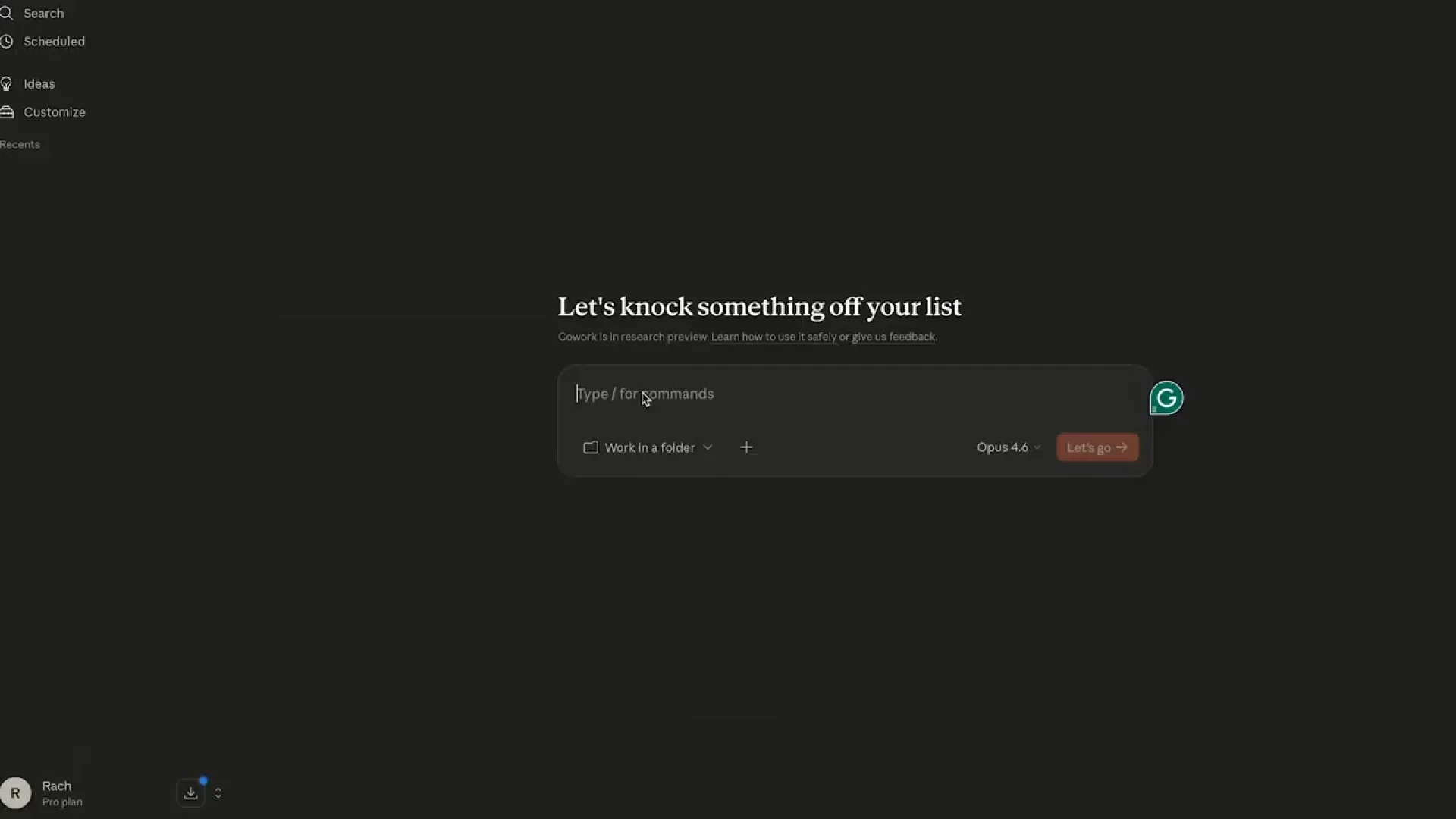
We've walked through this process with some of our customers at Teamwork.com, and it consistently takes under 15 minutes when you have the right pieces ready.
Step 1: Install the Claude desktop app
Download the Claude desktop app from Anthropic's website. It's available for macOS and Windows. You'll need a Claude Pro, Team, or Enterprise plan; Cowork isn't available on the free tier.
Step 2: Enable the Teamwork.com MCP server
This is the key step. The MCP server is what lets Claude read your Teamwork.com data.
In the Claude desktop app:
Navigate to Organization settings > Connectors
Click the "Add" button
Hover over “Custom,” then select “Web"
Add the Teamwork.com MCP server URL (https://mcp.ai.teamwork.com)
Optionally, click “Advanced settings” to specify an OAuth Client ID and OAuth Client Secret for your server
Finish configuring your connector by clicking "Add"
Once connected, Claude can access your projects, tasks, milestones, time entries, and resource data. It reads the data in real time, so any changes in Teamwork.com are immediately visible to Claude.
Pro tip: Create a dedicated API key for Claude Cowork rather than using your personal one. This makes it easier to revoke access if needed and lets your admin track AI-related API usage separately from human usage.
Step 3: Create your first Cowork Project
Cowork Projects are persistent workspaces where Claude remembers context between sessions. Create a project called something like "Weekly Reporting" or "Project Health Monitor." Add your standard report template as a reference file, and write a brief instruction set: "When I ask for a status report, pull data from Teamwork.com for all active projects, include time logged vs. budget, and flag any tasks overdue by more than 2 days."
This project becomes your reusable workspace. Every time you return to it, Claude remembers the instructions and past context.
Step 4: Test with a real task
Start small. Ask Claude to "list all tasks due this week across my Teamwork.com projects." Verify the output matches what you see in Teamwork.com. If the data looks right, try something more complex, like drafting a status report or identifying resource conflicts.
What Claude can't do yet (and workarounds that help)
It's important to note that Claude has genuine limitations that matter for team environments.
Single-computer limitation. Claude runs locally on the machine where you installed it. You can't start a task on your laptop and pick it up on your desktop. If you work across multiple devices, this is a friction point.
No team collaboration. Cowork Projects are local to your computer. Your colleague can't access your "Weekly Reporting" project or see the reports Claude generated for you. Each person runs their own instance.
No cloud sync. Your Cowork Projects, files, and conversation history live on your local machine. If your laptop dies, that context is gone unless you've backed it up manually.
Usage consumption. Each Cowork session uses significantly more API capacity than a regular Claude chat. Depending on your plan, you may hit usage limits faster than expected, especially with complex multi-step tasks.
Pro tip: Point Claude Cowork at a folder synced with iCloud, Dropbox, or OneDrive. Your Cowork Projects stay local, but the output files (reports, briefs, analyses) sync to the cloud automatically. It's not a perfect workaround, but it means your deliverables are accessible from any device.
How Teamwork.com makes Claude even more useful
Claude is only as useful as the data it can access. The reason the Teamwork.com integration works well is that Teamwork.com centralizes the data that matters for client work: projects, tasks, time, resources, budgets, and client details, all in one platform.
Here's what that means in practice.
MCP server for live data access. Teamwork.com's MCP server gives Claude read access to your project data in real time. Unlike integrations that rely on periodic exports or manual data entry, the MCP connection means Claude always sees current information.
Project templates for consistent structure. When every project follows a standard project template, Claude can generate more accurate reports because it knows what to expect. The pattern we see across Teamwork.com customers is that standardized project structures make AI outputs dramatically more reliable.
Resource scheduling for capacity visibility. Claude can pull resource allocation data to flag when someone is double-booked or when a project is under-resourced. See who's overbooked instantly with the Resource Scheduler and let Claude surface conflicts you might miss.
Time tracking for budget accuracy. With billable and non-billable time tracked in Teamwork.com, Claude can compare time logged against project budgets and flag projects trending over budget before they become a problem.
Reporting for project health. Teamwork.com's project reports give you dashboard-level visibility. Claude adds a narrative layer, turning those numbers into written summaries that are easier to share with stakeholders who don't want to log into a dashboard.
When Invanity consolidated their project management into Teamwork.com, they cut planning time by 50% and reduced weekly workload management effort by 80%. That kind of data centralization is exactly what makes an AI coworker effective: when all your project data lives in one place, the AI doesn't have to guess or ask you to fill in gaps.
Data point: According to Teamwork.com's Sprint to AI research, 35% of clients now want to see AI used on their projects. The firms that can show how AI integrates with their delivery workflow, rather than just talking about it, will have a clear advantage.
Use Teamwork.com's project templates to create a standardized structure for every engagement. When Claude pulls your project data, consistent naming conventions and task hierarchies make the AI's output significantly more accurate. In my experience, teams that invest 30 minutes standardizing their template save hours every week in AI-generated report accuracy.
)
)
)
)
)
)
)
)