

Key takeaways
Skills turn the recurring questions behind client delivery (status, late work, capacity, time and billing) into one-step commands, so answers stay consistent whoever asks.
Type / in Ask AI to get a status update or late-work list in one step, with no prompt to write. If a skill needs a client or timeframe, it asks.
Any prompt you've refined can be saved as a skill, and new ones are written in plain language, so the way your team works becomes something you can rerun.
Skills are coming to Ask AI: saved requests you run with a single command. Type /, pick a skill, and get the status update, late-work list or timesheet check your team needs every week.
No more retyping last week's prompt and tweaking it until the output looks right. Your team gets reliable answers in one step and spends its time on client delivery, not on describing it.
Consistent status, capacity and billing answers, whoever asks
Professional services delivery runs on a short list of recurring questions. What's late? Who's over capacity? Where did the hours go this week, and are they all logged? Each answer feeds something with money attached: an invoice, a client conversation, a resourcing decision.
When the answer depends on how someone phrased the request that day, the results drift. Two project managers ask for a status update and get two different reports. A skill fixes the shape of the output, so every report follows the same format and this week's late-work list covers the same ground as last week's.
The starter skills in Ask AI are built around exactly these jobs, using the project, time and budget data already in your Teamwork.com account. They include:
A project status update covering highlights, lowlights and challenges, in the same format every time
A sweep of overdue and late work across your projects, so slipping deadlines surface before clients notice
A check on who's over capacity this week, so you can rebalance work before it slips
Logging your time, and chasing the timesheets that are still missing
A breakdown of time and billing by client, so you know where each account stands before invoicing
Time logging sits in that list for a reason: hours that never get logged never get billed. (For more on how Ask AI handles time, see AI time logging.) And these are only the beginning. The skills gallery groups skills under Time, Reporting, Delivery, People, Financials and Knowledge, and you switch on the ones your team needs.
Type / and get a draft ready to check and send
Running a skill takes less effort than writing the request ever did. Type / in Ask AI and your recent skills appear first, with the full gallery a scroll away. Start typing and the list filters as you go.
If a skill needs context, it asks for it: which project or client, and what timeframe? Reply in plain language, something like "retainer clients, last 30 days", and the result lands in the chat as a draft for you to check and pass on. You can also add your own instruction alongside the skill when you trigger it, so one skill covers many variations of the same job. For a step-by-step walkthrough, see how to use skills in Ask AI.
Turn your best prompts into skills you rerun in one click
What about the request that's specific to how your business runs? The monthly billing reconciliation your finance lead has refined over months, or the stale-work chase tuned to your own process. No ready-made library could include those, because they reflect your expertise, not a template.
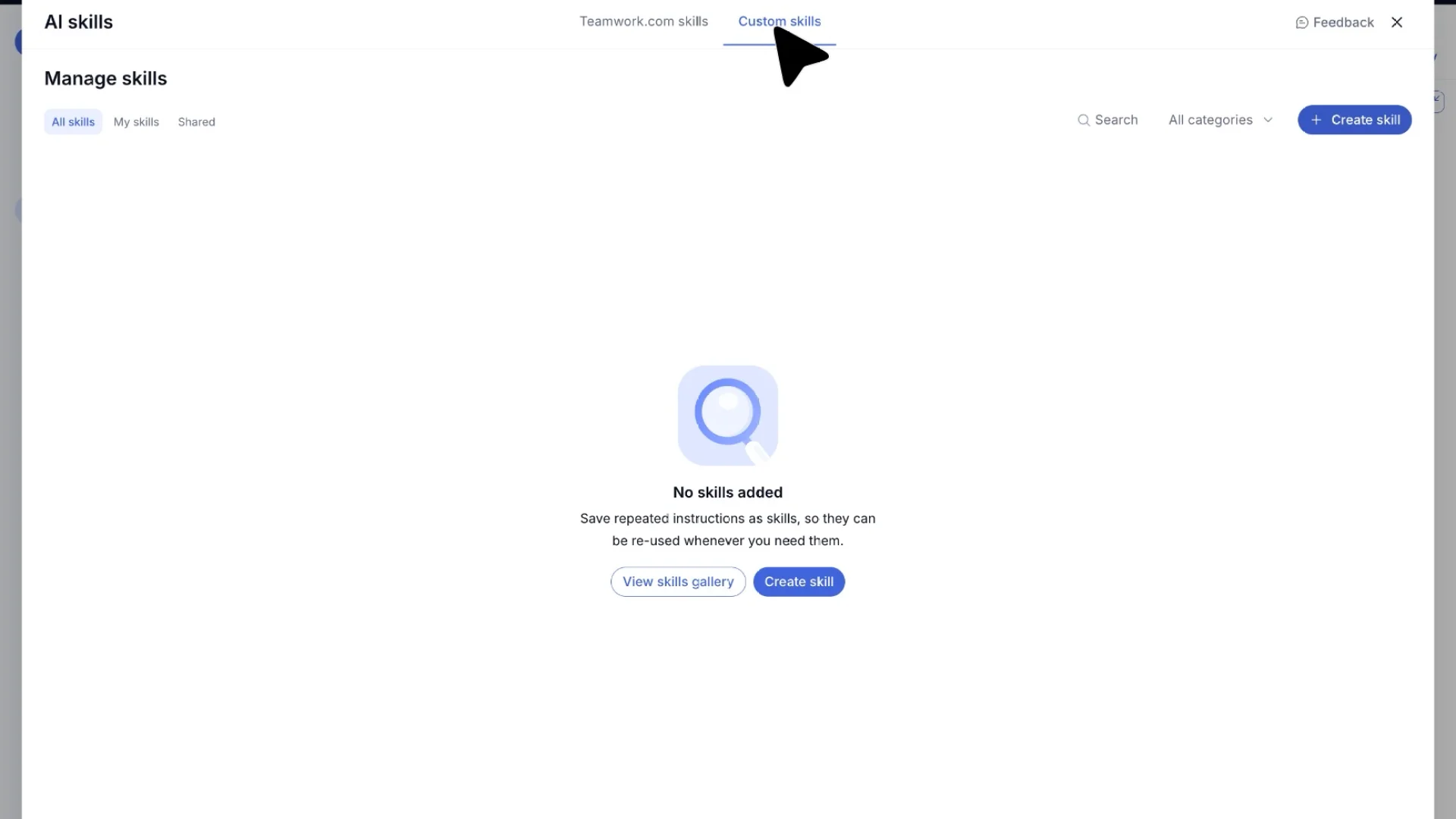
So you can build them yourself. Any prompt you've run in Ask AI can be saved as a skill in one click. Ask AI spots the pattern too: ask for the same thing a few times and it offers to save it for you. Or start fresh from the gallery with + Create skill, give it a name and describe what it should do. That plain-language description is all the skill needs. Prefer to start from a rough idea? Write with AI drafts the instructions for you, and Improve my skill sharpens ones you've already written. New skills are private to you by default.
Transcript for the video 'How do I create a custom AI skill in Teamwork.com?':
Constantly writing the same prompts in Ask AI? AI skills are reusable requests you can run-in Ask AI in one step. First, let's open up Teamwork AI by clicking the icon right here in the sidebar. Here's the chat box where all the magic happens. Just click in here and you can start typing any request you'd like Teamwork AI to handle. Before we type anything, let's check out what's already available by clicking Explore Skills. You can easily manage which skills are active too. For example, if you don't need something like Find Missing Time right now, just toggle it off. Since we're building something new, let's head over to the Custom Skills tab, where any skills you create yourself will live. Now we'll click Create Skill to start building our own from scratch. To keep things organized, let's assign this skill to a category by clicking this dropdown. This is the important partthe instructions. Here we'll tell the AI exactly what we want. Once everything looks good, just click Save Skill and your new custom skill is stored and ready to use anytime. Now for the fun part! Just click into the chat box and type a forward slash to pull up all your saved skills in one place. Let's select Last thirty Day Report from the list and watch it run instantly. And just like that, your report is ready. You can see a full breakdown of task activity and time spent by project, all generated automatically by Teamwork AI.
That matters beyond saving time. Teamwork.com is the agentic PSA (professional services automation platform), built so AI works the way your business does, on your own delivery data. Skills capture your team's know-how in a form AI can reuse, and they're a building block for Teamwork.com's wider AI capabilities, including the agents in AI Teammates.
When skills reach your account, start with the request your team makes most often and save it as your first skill.


