)
)
Executive Summary
For COOs, CFOs, and Heads of Delivery, the start of the week is often a race to find the truth hidden in a dozen different reports. By connecting Teamwork.com to your LLM (Claude, ChatGPT) via our new Model Context Protocol (MCP) server, you can query your business health in plain English. This isn't just about speed: it's about gaining a level of operational visibility that was previously impossible without a dedicated finance team.
Every services leader walks into Monday with the same five questions: Where are we exposed this week? Who is overloaded? Which clients have gone quiet? What is eating our margin? Where are we leaking time?
Traditionally, answering these meant pulling data from multiple reports and stitching them together manually. With AI and Teamwork.com, you can put those questions to our platform in plain English and get leadership-grade answers in seconds.
This library is a starting point, featuring 10 AI prompts services leaders can run every Monday morning to walk into the week informed. Copy them, adapt them, and share the results with your team.
At a glance: The AI prompt library
Prompt
Connecting your data to your LLM
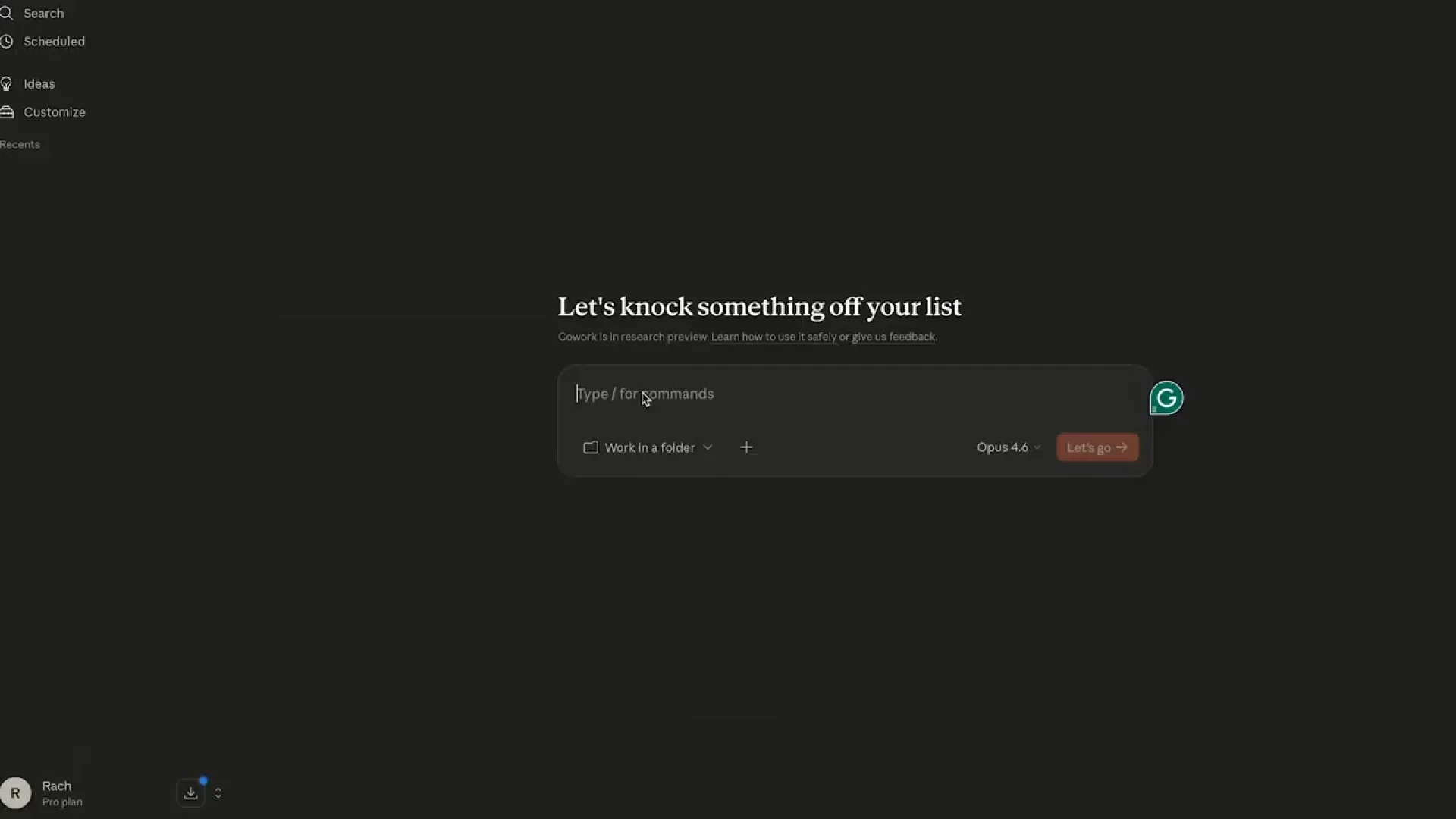
To use these prompts, you need to bridge the gap between your LLM and your live Teamwork.com data using our Teamwork.com MCP server. Once connected, your AI assistant gains a real-time window into your projects, budgets, and time logs. Watch the video below for a quick setup guide, then follow the steps to get started.
Transcript for the video 'Connect Claude to the Teamwork.com MCP Server':
In this video, I'll show you how to set up the teamwork dot com MCP server so Claude can work across teamwork dot com and teamwork desk. First, go to your teamwork dot com account and then from the settings section, turn on the teamwork MCP server. We'll do the rest of the setup in Claude. In this case, I'm using the Claude desktop app. Firstly, go to settings, then select connectors and from here choose custom connector. Next, create a new connector. You can give it any name you like, but the important part here is the MCP server URL. Mcp dot ai. Teamwork dot com. Enter that server URL and then save the connector. Once that's done, the teamwork com MCP server has been added to Claude. Next, head back into Claude and test it with a prompt related to one of your Teamwork projects. For example, you can ask, can you give me a current overview including open tasks for Murphy Investment Co? At this point, Claude will ask you to connect to teamwork dot com. All you gotta do is select connect or reconnect and then log in to your teamwork dot com account. On the next screen, just select allow. And once you're done there, the teamwork dot com MCP server is fully connected. Now Claude will return a current overview of the Murphy investment co project in this case, including whether it's active, which task lists are open, and how many tasks are currently open, and so on. From there, you can continue with follow-up questions or ask Claude to take action on your behalf. Behalf. And that's it. Claude is now connected and ready to work with your Teamwork dot com account.
Each prompt below notes the specific data required so you can pick the ones that match your current operational setup.
Prompt set 1: Works "out of the box"
These prompts run against any active Teamwork.com instance. No special configuration is required.
1. The Portfolio Health Scan
The prompt: Pull every active Teamwork.com project. For each one, summarise: percentage of tasks complete, percentage of milestones hit on time, whether the project is past its end date, and any high-priority tasks that are overdue. Rank the list by overall risk and tell me the top 5 projects I should be worried about going into this week.
What to expect: A leadership-level view of every active project, ranked by exposure, in 30 seconds.
How to act: Focus exclusively on the top 5. Look for patterns: for example, is one specific team or client type consistently at risk?
Strategic insight: This often surfaces "watermelon projects," which are projects that look green on the surface but are actually red inside. It forces the LLM to look at the variance between task completion and timeline drift.
2. The Stalled Project Detector
The prompt: Find every active Teamwork.com project where there has been no logged time, no completed tasks, and no comments in the last 14 days. For each one, tell me who owns it, when the last activity was, and what the next milestone is. Exclude projects that are deliberately on hold.
What to expect: Catches projects that have quietly gone dark before the client notices.
How to act: Review these with project owners immediately. Often, these are projects where the client is a bottleneck or the team is "quietly" avoiding a difficult task.
Strategic insight: Silent projects are the leading indicator of future churn. Re-engaging now is significantly cheaper than a post-mortem later.
3. The Forward Capacity Forecast
The prompt: Look at Teamwork.com. Across the next four weeks, pull each team member's available capacity in hours, factoring in working schedule and time off. Then overlay assigned task estimates over the same window. Tell me who is over 100% allocated, who is under 60%, and which projects are driving the imbalance.
What to expect: A 4-week view of team load before new plans are committed.
How to act: Rebalance work before sales commits to new projects. Investigate under-utilization to see if it is a pipeline issue or a planning gap.
Strategic insight: Over-allocation is rarely a sign of high demand; it is usually a sign of 'scope soak' where teams are working on unbilled extras rather than the next project in the pipeline.
4. The QBR Prep Brief
The prompt: Using the Teamwork.com MCP. For [Client Name], summarise: every project we've delivered or are delivering for them, total hours logged this quarter, milestones hit and missed, any open risks or overdue tasks, and the names of the team members most heavily involved. Format it as a one-page executive brief I can use in a QBR.
What to expect: A structured summary that replaces 1–2 hours of manual reporting per client.
How to act: Use the output as a first draft, then add strategic commentary regarding the value delivered and next steps.
Strategic insight: The value of a QBR is the advice you give, not the data you aggregate. Let the AI do the heavy lifting so you can focus on being the advisor.
Prompt set 2: Requires billable time tracking
These depend on your team logging time consistently and marking entries billable or non-billable. If your team isn't doing this yet, these prompts are also a good reason to start.
5. The Client Revenue Concentration View
The prompt: Using the Teamwork.com MCP. Looking at logged billable hours over the last 90 days, group time by client company. Show me which clients account for the top 60% of all billable hours, and for each one, flag any of their projects showing signs of stress like overdue tasks or no recent activity.
What to expect: Surfaces a risk most leaders fly blind on: over-reliance on a small number of clients.
How to act: Review your top three clients; if they also appear as high-risk in your health scan, pivot leadership attention to those accounts immediately.
Strategic insight: Over-reliance on key accounts is the most common reason services firms fail during market shifts. Monitor this monthly.
6. The Utilization Rollup
The prompt: Using the Teamwork.com MCP. For the last calendar month, calculate billable utilisation for every team member. Formula: billable hours logged divided by available working hours, against a 75% target. Flag anyone below 60% (under-utilised) and anyone above 95% (likely burning out or under-reporting non-billable time). Group results by team or department.
What to expect: A real billable utilization number per person against a strategic target.
How to act: Focus on the extremes. Below 60% suggests a pipeline issue; above 95% suggests burnout or a failure to report internal work.
Strategic insight: Use this data to drive resourcing conversations, not performance conversations.
7. The Non-Billable Time Audit
The prompt: Using the Teamwork.com MCP. Summarize all time logged as non-billable this month, broken down by person and by project. Flag any single person with more than 20% non-billable time, and any project absorbing a disproportionate share of non-billable hours across the firm.
What to expect: Surfaces exactly where the firm effort is leaking into non-revenue-generating work.
How to act: Distinguish between strategic internal investment and quiet scope absorption by project teams.
Strategic insight: Internal investment is fine; quietly absorbing client scope for free is a margin killer.
Prompt set 3: Requires Project Budgets
These prompts depend on your team using the Project Budgets feature in Teamwork.com, with budgets and rates set per project. If you're not using budgets yet, this is the highest-leverage feature you're not turning on.
8. The Project Margin Tracker
The prompt: Using the Teamwork.com MCP. For every active project with a budget configured, compare logged hours valued at the relevant rates against the agreed project budget. Show me: percentage of budget consumed, percentage of work completed, and the variance between them. Flag any project where budget burn is more than 20 percentage points ahead of completion.
What to expect: A traffic-light view of project health from a financial lens.
How to act: Flag projects where budget burn outpaces completion and intervene before the margin is lost.
Strategic insight: The variance between budget consumed and work completed is your most critical leading indicator for profitability.
9. The Scope Creep Detector
The prompt: Using the Teamwork.com MCP. Find every active project where actual logged hours have exceeded the original tasklist or project estimates by more than 20%. For each one, break down which task lists or work areas are driving the overage, and tell me whether the additional hours are being logged as billable or non-billable.
What to expect: Catches scope drift early, before it shows up in a margin post-mortem.
How to act: Identify where estimates are breaking down and decide whether to charge for the extra effort or absorb it as a strategic choice.
Strategic insight: The billable vs. non-billable split on overages tells you whether the business or the client is paying for scope creep.
10. The Quarter-on-Quarter Margin Trend
The prompt: Using the Teamwork.com MCP. Compare project margin performance across all completed projects in the last quarter against the previous quarter. Group by client industry or project type. Tell me which segments are improving, which are deteriorating, and where the largest single-project margin shifts came from.
What to expect: Identifies which client industries or project types are becoming more (or less) profitable.
How to act: Use this to adjust your go-to-market strategy, focusing on high-margin segments and reviewing the delivery model for deteriorating ones.
Strategic insight: This level of insight usually requires a finance analyst; treat the output as a hypothesis to be validated.
Building your AI operating rhythm
These prompts are just a starting point. We are currently developing a library for sales-to-delivery handoffs, post-mortems, resource planning, and forecasting.
A few practical notes as you build this into your routine:
The first run: Your LLM will explore your instance the first time you run these; subsequent runs will be significantly faster.
The operational truth: If a prompt returns an empty result, it is a signal that your data hygiene needs work (for example, tasks are not estimated or time is not being logged). Use this to coach your team on operational discipline.
Don't ship raw: Use the output as a draft. The value is in the time saved getting to a first version, not in replacing your professional judgment.
If you find a prompt that consistently saves you time, share it with a peer, and with me at gearoid.buckley@teamwork.com. We want to help spread these operating practices across the services industry.
)
)
)
)
)
)
)
)
)