Put your AI to work with
the Teamwork.com MCP server

Connect Claude, ChatGPT, Gemini, or any agent. Track work and analyze project health across milestones, tasks, Desk tickets, and more. The possibilities are endless.

30 DAY TRIAL. NO CREDIT CARD REQUIRED

Transcript for the video 'How to Use AI for Project Management and Team Capacity Tracking':

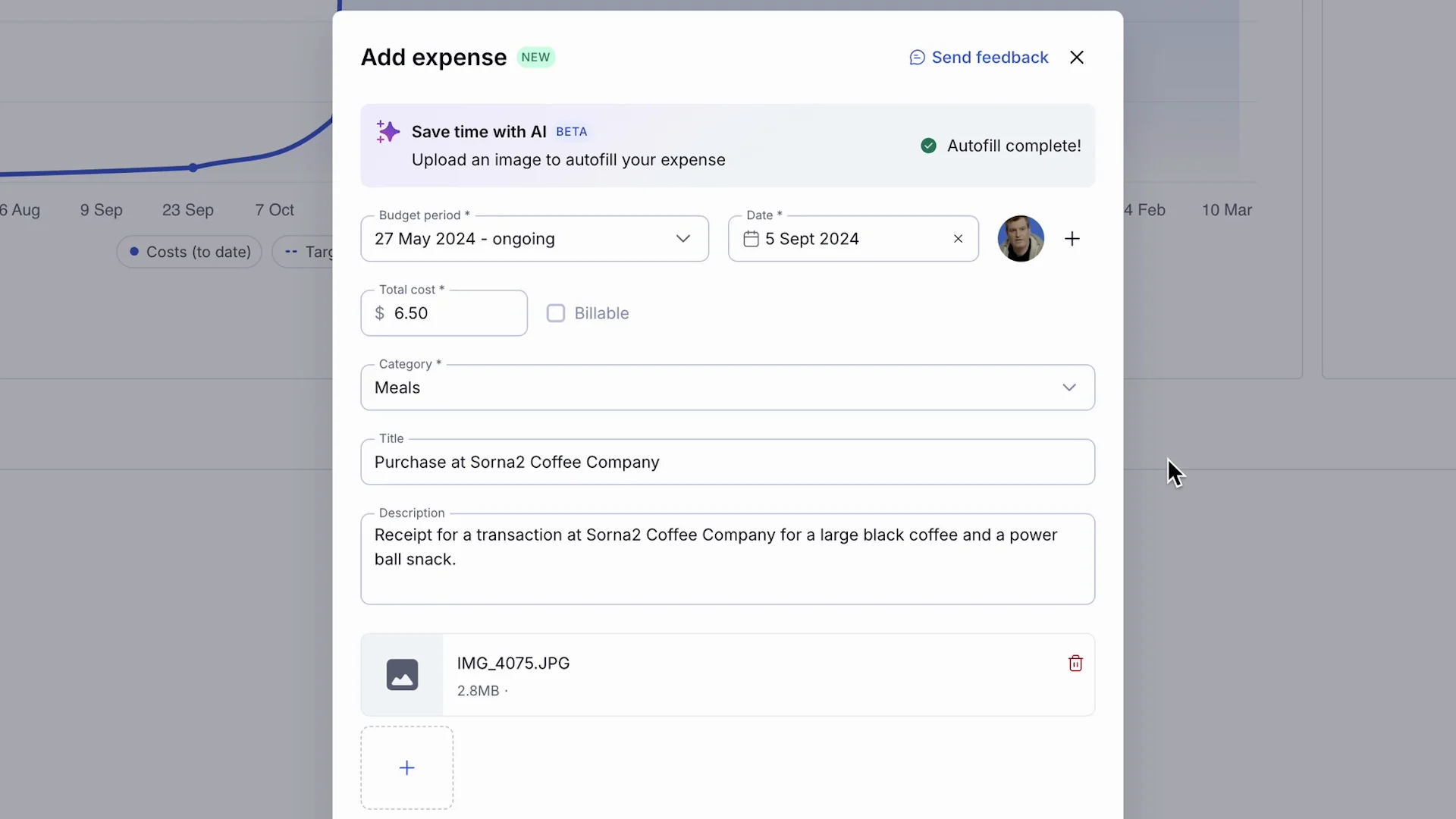
You're juggling work, updates, and a dozen moving parts. Teamwork AI gives you a boost without changing how you work. In a busy project, finding the right task shouldn't be a task. So just describe what you need and Teamwork AI finds it fast. And if you're buried in the back and forth, let Teamwork AI give you the highlights, blockers, progress, and next steps in one clean summary. Expenses used to be painful and manual. Now just upload a receipt. Teamwork AI fills in the details. No typing. No errors. Just done. If you're wondering who's overloaded or who's underused, the Teamwork AI utilization summary shows you team capacity in seconds so you can keep work moving. And wherever you write in teamwork dot com, AI helps you say it better. Rewrite, simplify, clean up tone, all in one click. Work faster and focus on what matters most with Teamwork AI. Try it today.
Thumbnail image for the video: How to Use AI for Project Management and Team Capacity Tracking

How the Teamwork.com MCP works

Enable the MCP

Set up the Teamwork.com MCP server in your settings, integrating with the workspaces and accounts you choose.

Connect your AI tool

Add the Teamwork.com MCP URL to tools like Claude, ChatGPT, or Copilot, then simply authenticate it.

Let AI do the work

Ask questions in plain English. TeamworkAI reads, writes, and takes action across projects, tasks, Desk, and more.

Get started with your favorite AI tools

OpenAI logo connected by dashed arrows to the Teamwork.com  logo, illustrating an integration between ChatGPT and Teamwork.com.
ChatGPT

OpenAI’s conversational AI assistant for writing, research, brainstorming, coding, and everyday productivity.

Claude logo connected by dashed arrows to the Teamwork.com  logo, illustrating an integration between Claude and Teamwork.com.
Claude

Anthropic’s AI assistant designed for thoughtful reasoning, long-form writing, and secure collaboration.

CoPilot logo connected by dashed arrows to the Teamwork.com  logo, illustrating an integration between CoPilot and Teamwork.com.
Copilot

Microsoft’s AI sidekick that helps you work smarter across documents, meetings, spreadsheets, and code.

Gemini logo connected by dashed arrows to the Teamwork.com  logo, illustrating an integration between Gemini and Teamwork.com.
Gemini

Google’s AI-powered creative partner for exploring ideas, generating content, and boosting productivity.

Cursor logo connected by dashed arrows to the Teamwork.com  logo, illustrating an integration between Cursor and Teamwork.com.
Cursor

An AI-powered code editor that helps developers write, edit, debug, and understand code faster with confidence.

Your AI gets access. You stay in control.

Even as TeamworkAI continues to evolve, your data will always stay protected.

OAuth 2.0 secure connection

The Teamwork.com MCP server connects via the OAuth protocol. No API keys, no shared

Interface showing a custom connector setup for "Claude" with instructions and a URL input field for Teamwork MCP.

Scoped to your permissions

Your AI can only read and act on what your user account already can. Same role-based controls as the UI.

Teamwork.com user interface showing ChatGPT settings with enabled apps, against a purple gradient background.

SOC 2 + zero training

SOC 2 compliant. Your project, client, and time data is never used to train third-party AI models.

Interface showing Teamwork.com MCP Server connection, with a "Connect" button highlighted.

FAQs

What is MCP?

The Model Context Protocol (MCP) is an open standard that lets AI tools securely understand and act on data inside software platforms. The Teamwork.com MCP server is our implementation — the secure bridge between your AI tool and your Teamwork.com data.

Who can use the Teamwork.com MCP server?

Teamwork.com MCP is available to all paid customers. An admin enables it from Settings, then connects supported AI clients via OAuth.

How do I get started?

Turn on the MCP server in your Teamwork.com account settings, then follow the connection guide for your AI tool of choice — Claude, ChatGPT, Copilot, or Cursor. The full setup takes about two minutes.

Which AI tools work with the Teamwork.com MCP server?

Any AI client that supports the Model Context Protocol. We have verified setup guides for Claude (Anthropic), ChatGPT (OpenAI), Microsoft Copilot, and Cursor. Other MCP-enabled clients should also work — check with your AI provider.

Does the MCP server respect Teamwork.com permissions?

Yes. The MCP server operates entirely within Teamwork.com's existing permission model. Your AI can only see workspaces, projects, and data that the connected user is already permitted to access — exactly the same scope as the UI. Because AI takes actions on your behalf, we recommend scoping carefully and monitoring activity.

Is there a cost to use the Teamwork.com MCP server?

There is no additional cost from Teamwork.com to use the MCP server. You may incur usage costs from the AI tool you connect with — check with your AI provider.

Is my data safe? Will it be used to train AI models?

Teamwork.com is SOC 2 compliant. Per our AI policy, your data is never used to train third-party AI models. The MCP connection is OAuth-secured, and access is fully scoped to the connected user's permissions.

Where can developers learn more?

Visit the Teamwork.com MCP repository on GitHub for technical documentation, code samples, and the full action manifest. Engineering teams can also extend the MCP server for custom workflows.