Transcript for the video 'What Is Ask AI in Teamwork.com? Your AI Assistant for Project Management':
What happens when you forget to log your time? What happens if you want to learn how to do something new? And what happens when you want to find the latest client feedback? Ask AI, whatever you need in teamwork.com.


)
Just ask. In your own words.

)
What Ask AI can do
Ask in plain English. Ask AI does the work in Teamwork.com. You confirm every change before it saves.
)

Create or update projects, task lists and tasks
Start a project from a template or a copy. Add task lists and tasks. Change dates, owners, priority or tags in one ask.

Create milestones, dependencies or subtasks
Set milestones, break work down into subtasks, or link tasks that depend on each other.

Send comments, messages and project updates
Comment on tasks, milestones, files or notebooks. Post messages and replies. Share a project update. Ask AI drafts it and you confirm before it sends.

Log time or start a timer
Log time against a project or task, or start a timer. Say what you did and Ask AI drafts the entries.

Find tasks
Describe the task you need and Ask AI brings it to you.

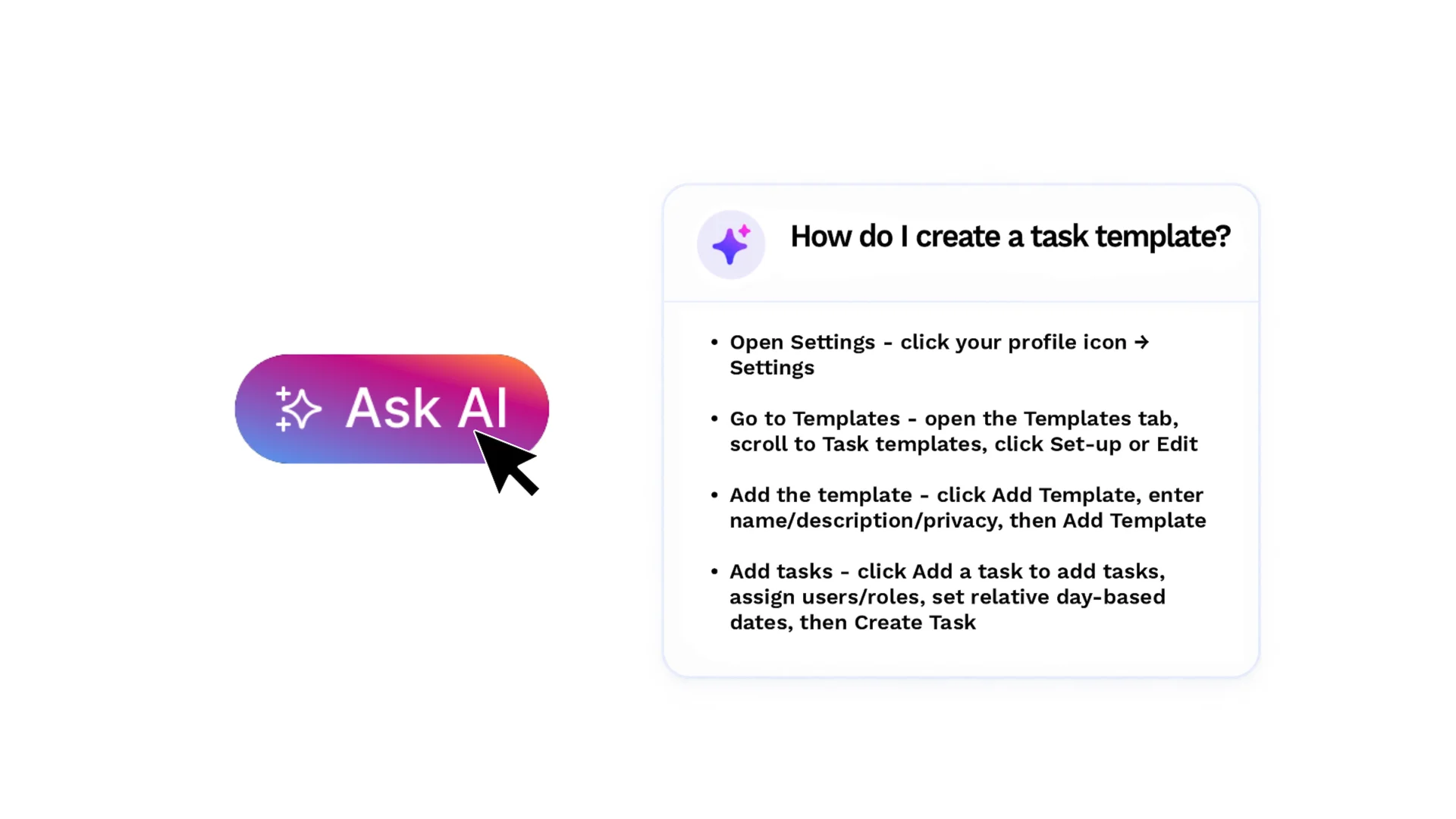
Learn how Teamwork.com works
Ask how to do something in Teamwork.com and get the answer where you are working.

Report on what needs attention
Ask who has missing time, which budgets have overrun and who is over capacity. Ask AI answers from your live data.

Ask about your meetings
Using Scout’s Join my meeting? Ask AI answers questions from your meeting transcripts, so you can find decisions, actions and details quickly.
Built around how you work

Pick up where you left off
Open Recent chats to see past conversations. Select one to restore its history and carry on.

Resize the chat or go full screen
Keep Ask AI as a side panel while you work, or expand it to full screen for longer tasks.

Report on time, tasks and budgets
Ask for a report in plain English. Ask AI answers from your live data, as a table when you want one.

Speak instead of type
Select the microphone and dictate your request. Ask AI works from your voice input.