Live Demo: 3 ways agencies use Teamwork to become more profitable
Transcript for the video 'Live Demo: 3 ways agencies use Teamwork to become more profitable':
Hello, everyone. Thank you for joining. Today we're running through life demo of the top three ways agencies use teamwork to become more profitable. My name is Eva. I'm an account executive here at teamwork. Today, we're going to do a high level overview of some of team Rick's key features that help agencies become profitable or remain profitable as their business grows. In terms of participating in today's webinar, you can use the questions section to say Hello. Ask anything or join the discussion. We'll have dedicated time at the end of our session for a Q&A where I can get to some of your questions and answer those specific areas that you had questions on as we run through the demonstration. From speaking with agencies on a daily basis. Some of the common problems that we're trying to solve is lack of visibility into profitable projects. Difficulty delivering projects on time and under budget. Team members going over capacity on projects. Struggle, identify opportunities to scale growth. We'll jump into the demonstration of this webinar. So what you'll see now is teamwork. The home page. What teamwork looks like. So very easy to navigate your way through the ice. Over here on the left hand side is where we will be jumping into our different sections. Then once in a specific section, we have our tabs up at the top here. To begin with, I'd like to start by demonstrating the time tracking functionality within teamwork. There are different areas in which you can log your time within the platform. What I'm going to do now is click into a specific project. And show you that each project has its own specific type section. So in the project here, I'm going to jump into the time tab. Now what we're seeing is all time logs. For this specific project. What I find really useful is up at the top here, you'll see you have a filtered total. So of all the logged time based non billable billable time versus the estimated time that you may have allocated towards that project. You also have the total of time that has actually been built and then the outstanding time that has not yet been built. Within the time section of a specific project is one area where you can log time within must. I have the option to start a timer and that timer will be going in the background as I'm working on this specific project or I can log time manually here. Associated with this specific task. Let's ask and Mark whether I want that time to be billable or non billable like the time entry. What I'll do now is stop this timer. And I could log that time as again, billable or non billable type. Within this specific time area. As I mentioned, it's just time associated with this specific project. Within team work, we also have a site that will type section. Back over to the left hand side here. I'm going to jump into our slice point section. Now what we're seeing is all of the time logs across all of the multiple projects that are ongoing. As I'm sure you can imagine, this area, I can get quite busy. There's multiple different projects, multiple different time logs. You can log time from within this section once again by manually logging or starting a timer. What I find really grace within the overall inside section is utilizing your filters here to pull or extract specific time logs or information. You'll see with our filtering option. For example, I have the option to filter time logs just this week. I can filter by a specific user or a whole team. If I filter by myself. Now, for example, all I'm seeing is time logs made by me this week. You'll see there's some more options, such as filtering by just billable time or just non billable tight, just time. That has been invoiced. Very tight. That has not been invoiced. Filters are really a great way to pull specific areas of information. You can also then save these voters. If you want to set up a weekly filter by user, for example, you can do so. Within the overall time section. Then we have the time reports. I can jump to our specific time reports. The time record is really amazing and how you would get a good visual view of billable time, non-visible time and actually time that has been built. Within here, you'll notice that you can have a custom date range by week by quarter. You'll see that the different, different colors which are indicating the build time. You can view this group bit by a project level, a company client level, an individual user level team or task. The time required is extremely useful to get that in-depth reporting knowledge on the time on your account as a site level. Once again, we'll see. We have the option to use filters, if need be, to jump to users or projects as well. That's the ability to track time with teamwork. We also have the functionality of adding timesheets within. And so it's really great in getting a holistic view and covering all the time aspects that you would need. The next area that I would like to cover is budgeting, tracking how to deliver projects on time within budgets. I'm course. Correct the first area in which we can do so is if I go back to my project section, jump into a specific project. Similarly to Hal, every project has its own section. Every project also has a dedicated finance section. Within the finance section. Then we have two areas that are billing and budget. The billing area here would be for your invoicing needs, how you pull those type logs into existing invoices or create new invoices. You can also set your rates within here. What's really amazing within teamwork is you can have site level user rates. You can have individual rates per project. Or you can also set available rates for everyone on the project. That customization is really useful as you might have different projects for different clients that need different rates associated with them. Now if I toggle over to our budget section. Within teamwork, you have the ability to create a financial budget or a time, which is. The budget can be based on fixed fee or number of hours. What you'll see here is if I go into our budget area, I have the option to end the current budgets, add a new budget or edit an existing budget. Bernie what I'd like to do is add a new budget and you'll see some of the options available. You can add a standard. But yes, once again, as I mentioned, based on financial or time. I can have that widget to replace. And what's really amazing here is you can set up various notifications for when the budget exceeds different percentages. This is extremely useful to get a good baseline of what's going on. Receiving those notifications as things might and as budget might be being used rapidly. It's just a great way to be notified of these important changes within your projects as you'll have multiple projects going on. It's very important to receive these notifications. You'll see. The other option is to create a retainer. Just as I mentioned, we speak with agencies on a daily basis and you understand that a lot of the flight risk that you're carrying can be on an ongoing retainer basis. So therefore, there's the need for adding retainer budgets similarly to the standard budgets. It can be based on financial or time. You can have the budget based on all time, billable time, non billable time. You can have the period and enters monthly or quarterly and once again you can set up those vital notifications for when the budget succeeding and certain amounts. Also still within the budget area. You will get a view here, a snippet of that project's profitability. You can view that profitability as a currency, profit as a number. Or as a percentage profit? As a percentage. Below this project profitability. Do you see the option of creating this budget? Budgets are really for enhancing and gaining more granular budget control. Within teamwork, you have your overarching project address. But on a more granular level, as I mentioned, you can add different passive projects to specific areas of your project. For example, this case studies tarsus has a task spot. Yes and I get a good gauge that it's already at 93% of the budgets. And this is based on your team members logging time against these tasks that you've created. This is really great for getting a more in-depth knowledge of where your budget's going within a specific project. You have the ability then to add different ad hoc expenses to keep track of those. And then you'll see here I had already some notification set up for this project when the budget exceeds 60, 80% and 90% That's the finance section within corporates, the budgeting side of things. Now what I'm going to do is jump into our planning area. T work has a specific area for planning, managing resources and capacity. Within here, what you'll see is the workflow planner. The workflow planner is based on users capacity. When you add your team members to your team size, let's say you add their capacity as an eight hour working day Monday to Friday. As that individual is assigned work tasks with estimated time allocated towards those tasks that users capacity will flow. You can see here, Ashley, is overcapacity here. She's gone into the red, her capacity with an 8 hour working day. She has 12 every 10 minutes worth of tasks is 9 days. And it's very easy indicated by the red there. With the workload, you can come in and make capacity over a number of days. What I find really useful in the workload is maybe coming in and assigning our own assigned tasks based on the capacity that you're actually seeing. So visualizing where your users are at or maybe a specific team and then assigning it work based on who has capacity to take on more work. Within here, you can view this workflow plotter on a weekly or monthly basis. And use your filters once again to either filter by specific users, companies or projects alike. It's a really great way for seeing who's being under work, who's being overworked, who has capacity to take on more work. What I'm going to give you a good overview now still on the budgets and tracking and team is our project health reports team work has a specific area for or reporting options. We covered the time, of course. Now, what I'd like to show you is the project health reports. Within here. I see my active projects on my slice. I'll get a good gauge of the time left the task completion rates and also an overview of the budget percentage as well. Within the project health reports. As you click on a specific project, you'll immediately get that brilliant dashboard view of what's going on. Breakdown of tasks. Project projects. For example, if I want to see started tasks, I can type the whole ID. So the project health report is a really great way of getting an overview of your projects on the health of those projects, seeing what's needed attention and what's going well. The last area that I'd really like to cover today is a specific profitability reports. With the profitability reports, you can see what of your projects are profitable? What are not profitable? What do you need to change? What's working well? You can view the profitability as a number or as a percentage. The profitability is based on. Billable rates by billable time, minus the cost race multiplied by the total time lost. Getting this in such profitability of projects is vital for the company, obviously, to see what's successful, what's not successful. You can also view profitability by user, which is amazing as well. See what of your employees are profitable and he's doing well for example, with the profitability report as well. You'll be able to do custom date ranges. So be it the last three months, last month, last week. And it will give you that really important insight to which projects are going well and which projects need attention. With the profitability report. Once again, filters are a great way of jumping to specific areas as your projects get busier and you've multiple projects going on. And then you also do have the ability to export this report or schedule this as well. So it might be important to schedule a profitability report to go to management or specific users on a weekly or bi-weekly basis. And you can schedule that profitability report to be sent this. So that includes and the demonstration side of the webinar, just based on the rotators and the profitability, the test budgets, these are features that are available on a scale plan. So if you're currently on a plan of trial of teamwork on our group plan, you can contact myself directly and we'll be able to get your plan upgraded to the scale plan so you have access to all of those good features such as profitability, taxes, budgets and retainers. So now we are at the Q&A section of the webinar. So please drop your questions in the comments section. We'll facilitate these and we can keep more complex questions potentially and on a one to one follow up, but looking forward to hearing some of the questions that have come through. So just getting a question from Olivia. Is there a way to have the time log from your calendar? For example, if I had a meeting on my calendar for one hour related to case studies, can teamwork incorporate with my April calendar to see that sign? Or do I need to go in and manually input that hour for the meeting? So for now and it would be manual entry with the outlook calendar, we do have a sync with outlook, but it is a one way sync what you can do and only the app is within. Within the workload planner section. Let's just say this is you, Olivia, as Ali. We can add on available time within here. So you do have the option to block off time, let's say, for a meeting and then that go going as unavailable. So that would be an option that we do have. And then we have an integration and development right now for it to sync with the calendar. Just going to jump to the next question. So can you see actual teams capacity rather than just individual users capacity? Though the answer to this question is yes, you can. So within the workload area in here, as I mentioned, if you want to utilize your filters, what you'll be able to do is come in here filter by a specific team, and then you just see the design team and their capacity for the ongoing week or month. So this is really great potentially for maybe a team need to come in have on assigned tasks for the design team and assign them based on the actual user's capacity. So Davis, a question around the accounting software that the team works with. So if I just jump directly into a project here, Davis. So in a specific project, once again, jump to our finance area. Let's say that we want to export a specific invoice. You'll see that we can of course, export and invoice Excel PDF HTML. We integrate directly with QuickBooks and harvest, for example, where you can import your invoices directly. We can export to a zero file. What I can do for yourself, David, is share a bit further into integration page with you. With you following the webinar, we also do how the open API team works. So you can pretty much pull and as much information as need to be, such as custom fields and so on, so I can share some more in-depth information around integrations and the API with yourself. So, Diana, your question around as a brand new user, is there a video or training program that your staff can use to learn more about the basics, how to set of clients? So the answer is yes, absolutely. So something that's really exciting that we launched recently and with teamwork is or a team like the Academy. So it's basically a one stop shop for training videos. And we've got a library of webinars and videos getting started, the fundamentals. So the teamwork Academy is a really great way of getting your team up to speed and sharing videos. We also have ongoing support if you need to reach out to us directly. So, so really grace and really great resources there in terms of sharing with the team and getting comfortable with the platform. And then also a question, a question from yourself following up. So you said, I know this is simple, but how do we actually build our clients? So that would be within here, within the finance section, you can create your invoices based on the time that you've logged within the platform. Or what you can also do is create a fixed fee invoice within team work and then export that as a PDF and share it directly with your clients. Yes so another question we have is, is there a recourse to generate the actual exit migration? Is that the time locked against each task? So within our reporting section here, we had a plan versus actual report. So comparing the plan versus the actual status of tasks across your project. So within the plan verses actual reports, you can do this with tasks or milestones. Once again, you can use your filters in here to filter by a specific project team company, and you can get a gauge of the plan versus the actual time that has been spent. So I think just the last question we have time for now. So when viewing time lags, is there a way to separate time logs that have already been invoiced? So the answer to this is Yes. If we are, for example, within the overall time section within here. We can utilize our filters and filter down time that has actually been invoiced or time that has not been invoiced. Yes so you can just pull the invoice side. So I already had a filter on here of myself in this week. We just have one time log that has actually been invoiced and versus the non waste type. So that's all we have time for. In terms of the Q&A, if there's any standing questions, I'll be I'll be giving my contact details that you can reach out to myself. Now we have light pole. So this is the first light demo that we've done like this, so we'd love to get some feedback. If you can select your answer. Now on the call, you should see it on the screen. Amazing so lastly, as you're filling out the pool, I'd just like to Thank you so much for joining. If you're in a trial right now, make sure to explore the features that I demoed today. As mentioned, if you're interested in the profitability reports, retainer budgets assist budgets, you can reach out to myself directly and I'll be able to upgrade your trial. So you can explore all of that good functionality. If you haven't started a trial, yes, we'll send a follow up email with a free link to sign up directly to get testing. If you have any further questions that we didn't get to, I will be adding my contact details in the follow up email so you can get in contact with me.
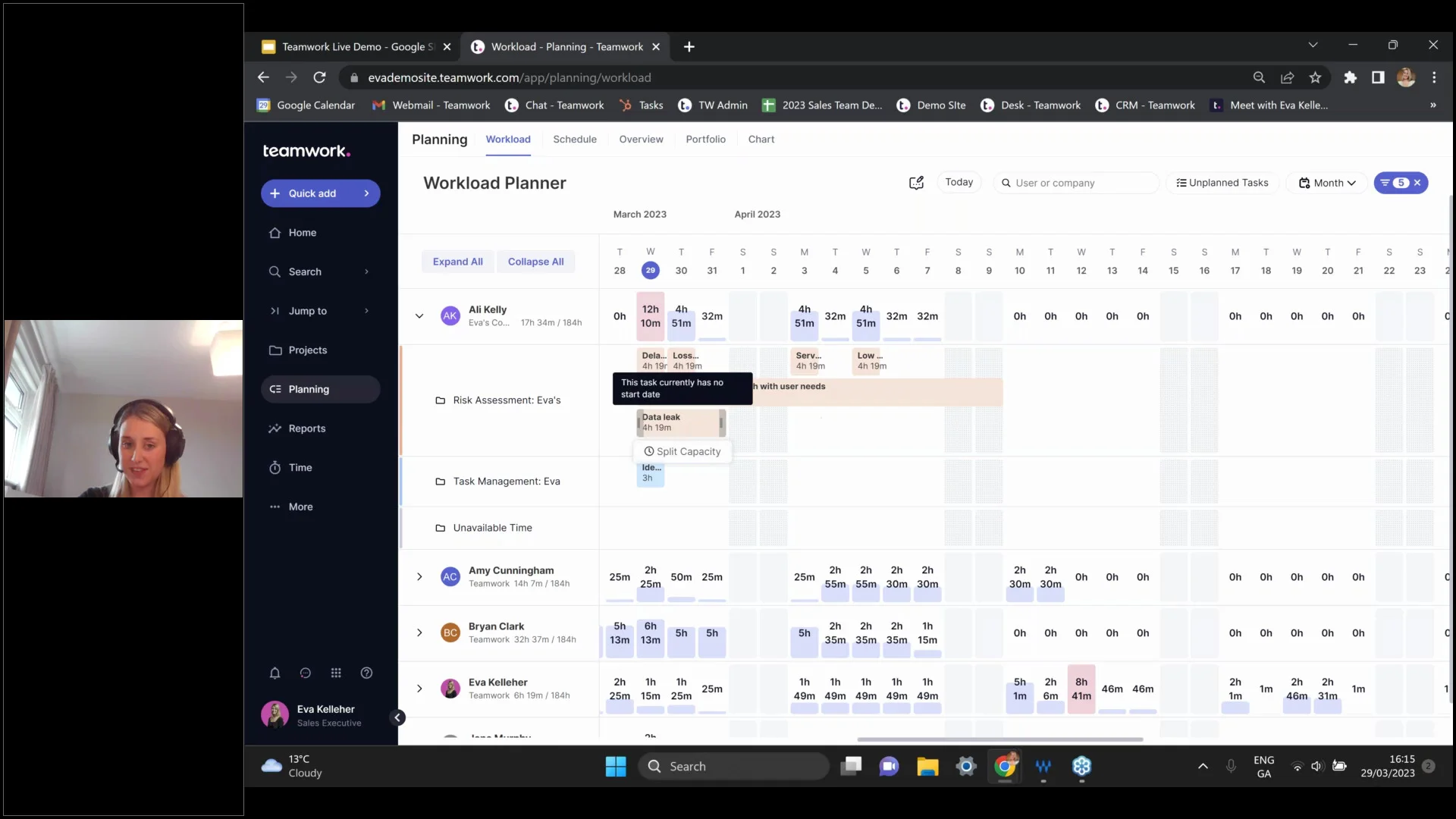
Watch our on-demand demo covering the top 3 ways agencies become profitable with Teamwork. By the end of our session you should know exactly how to leverage Teamwork to achieve the following:
💰 Identify your most profitable projects and clients
⏳ Optimize your team’s capacity to deliver projects on time and under budget
♻️ Determine specific and repeatable processes for scaling growth
Duration: 27 mins
)
)
)
)